
Import mail from another provider
Already have mail somewhere else? NevTan Mail can copy it across so your history is all in one place. Import runs over IMAP using a provider-generated app password, and works in the background while you keep using your inbox.
How import works
You give NevTan Mail read access to your other mailbox using an app password — a special password you generate at your current provider specifically for other apps. Your normal login password isn't used, and you can revoke the app password at your provider at any time.
Find import under Settings → Import mail once you're signed in.
Supported providers
| Provider | IMAP host |
|---|---|
imap.gmail.com | |
| Yahoo | imap.mail.yahoo.com |
| Zoho | imappro.zoho.com |
Outlook / Microsoft 365
Microsoft accounts aren't supported for import right now. Microsoft has retired app-password (basic) sign-in for IMAP, so importing from Outlook or Microsoft 365 will return once sign-in-based import is available.
Get an app password
Before importing, create an app password in your current provider's security settings (they may call it an "app password" or "app-specific password"). This usually requires two-step verification to be turned on. Keep the generated password handy for the next step.
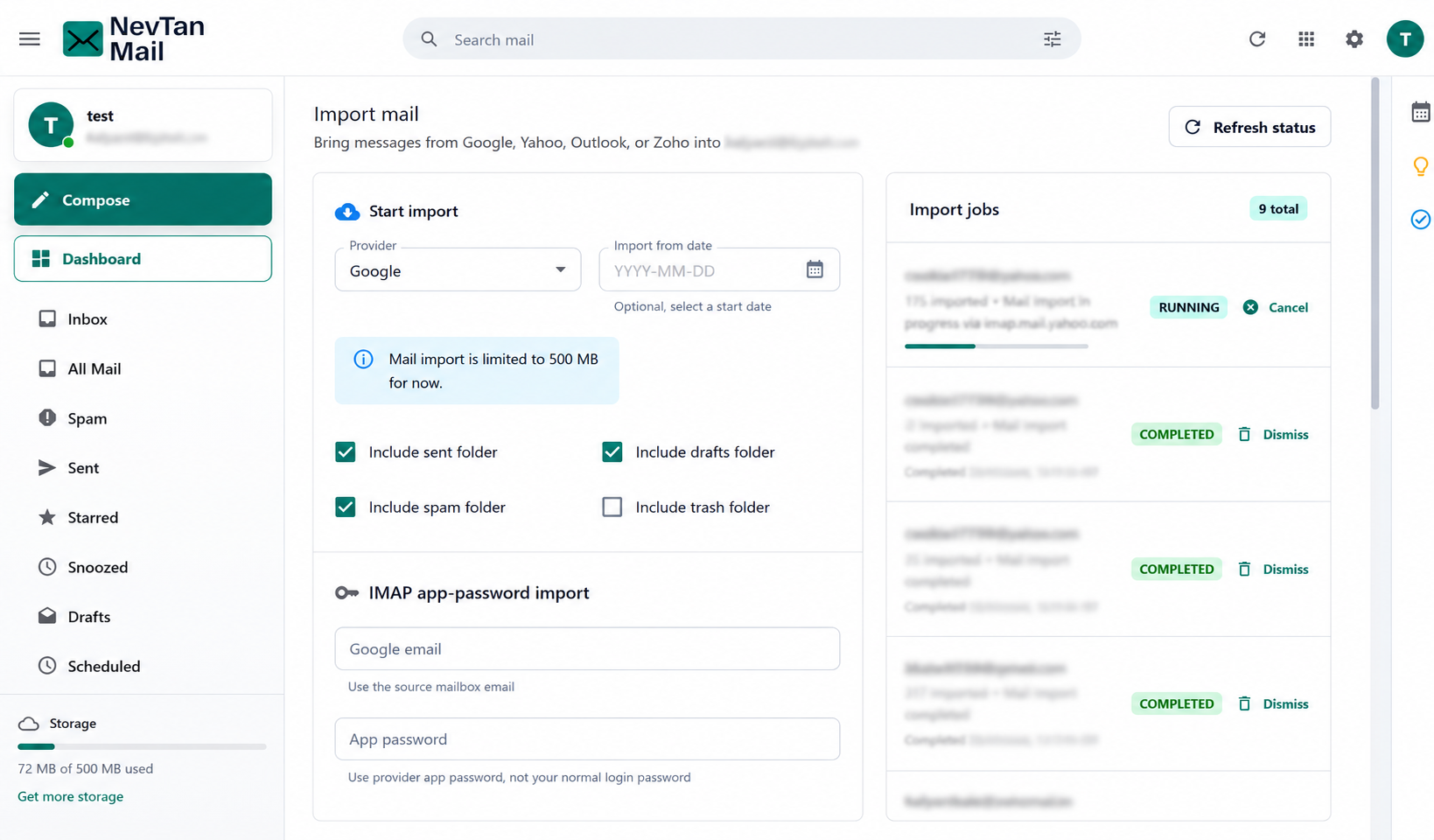
Start an import
Choose your provider
Pick Google, Yahoo, or Zoho from the provider list.
Enter the source mailbox
Type the email address you're importing from and the app password you generated.
Choose folders
Your inbox is always imported. Optionally include the Sent, Drafts, Spam, and Trash folders.
Set a start date (optional)
Leave it blank to import everything, or enter a date to import only mail from that point onward.
Start
Choose Import with IMAP. The import begins and can take a few minutes for a large mailbox.
Custom IMAP host
Most people can leave the IMAP host blank. If your provider uses a regional or organization server (for example a non-US Zoho region), enter its host in the advanced field.
Track import status
The Import jobs panel shows every import and its state — queued, running, completed, failed, or cancelled — along with how many messages have come across. You can Cancel a running import, and Dismiss a finished one to clear it from the list. Only one import runs at a time.
Limits
- Imports are currently capped at 500 MB per job.
- One import runs at a time — start another after the current one finishes or is cancelled.
Need help with a large migration? Contact support and include the source address and provider.
Still need a hand?
Our support team usually replies within one business day.